
SecAIQ Watch: See What the AI Tools on Your Computer Are Actually Doing
A free, open-source, local dashboard that shows which AI tools run on your machine, what they connect to, what they can access and how many tokens they use, without ever seeing your prompts or files.

AI assistants have moved from a browser tab to the heart of the workstation. Coding agents read your project files and run commands. Chat apps connect to your documents. MCP servers give assistants new tools, and local models sit on the same disk as your SSH keys. Most people can tell you which AI tools they installed. Far fewer can tell you what those tools are connected to, what they are allowed to touch, or how much data they have sent out this week.
SecAIQ Watch is a free, open-source dashboard that answers those questions on your own computer, without needing any cloud service, account, or subscription. It is local and read-only: it watches, it does not block, and it never sees your prompts, the responses, or the contents of your files.
See it live: the interactive demo runs in your browser on synthetic data, with nothing to install.
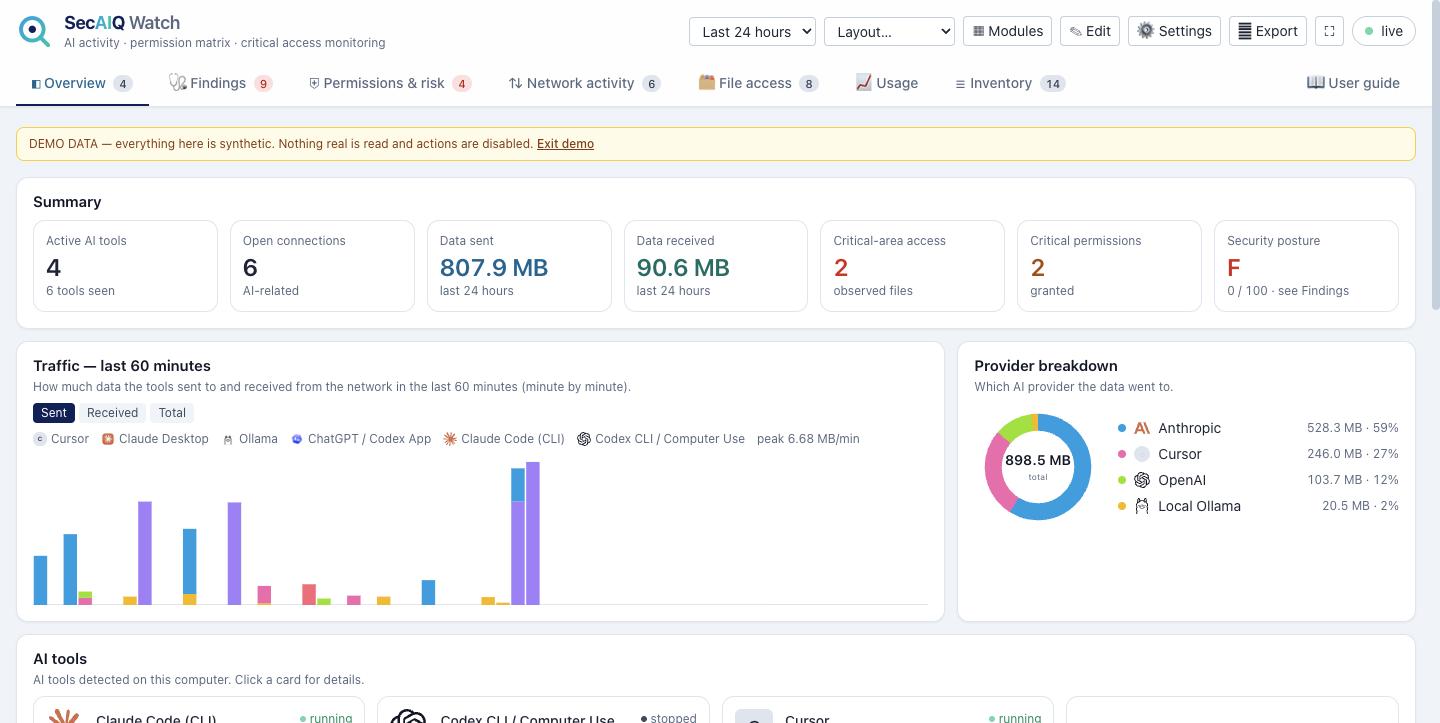
What it shows you
- Which AI tools are on the machine. About 37 tools and 33 providers are recognised out of the box: coding agents, chat apps, AI editors, local models, MCP servers and AI browser extensions.
- Where they connect and how much they send. Live connections per tool, destinations, bytes sent and received, and alerts for unusual upload spikes.
- What each tool is allowed to reach. A permission matrix maps every tool to sensitive areas such as SSH keys, .env files, cloud credentials, browser data and the keychain.
- What looks risky. Findings such as "allow everything" modes, broad allow rules, remote or unpinned MCP servers, hooks that run commands, secrets sitting in config files, and instruction files with hidden characters or injection-style phrases, rolled up into a posture grade from A to F.
- What is being used. Token usage per day, model and project for Claude Code and Codex, with a cost estimate.
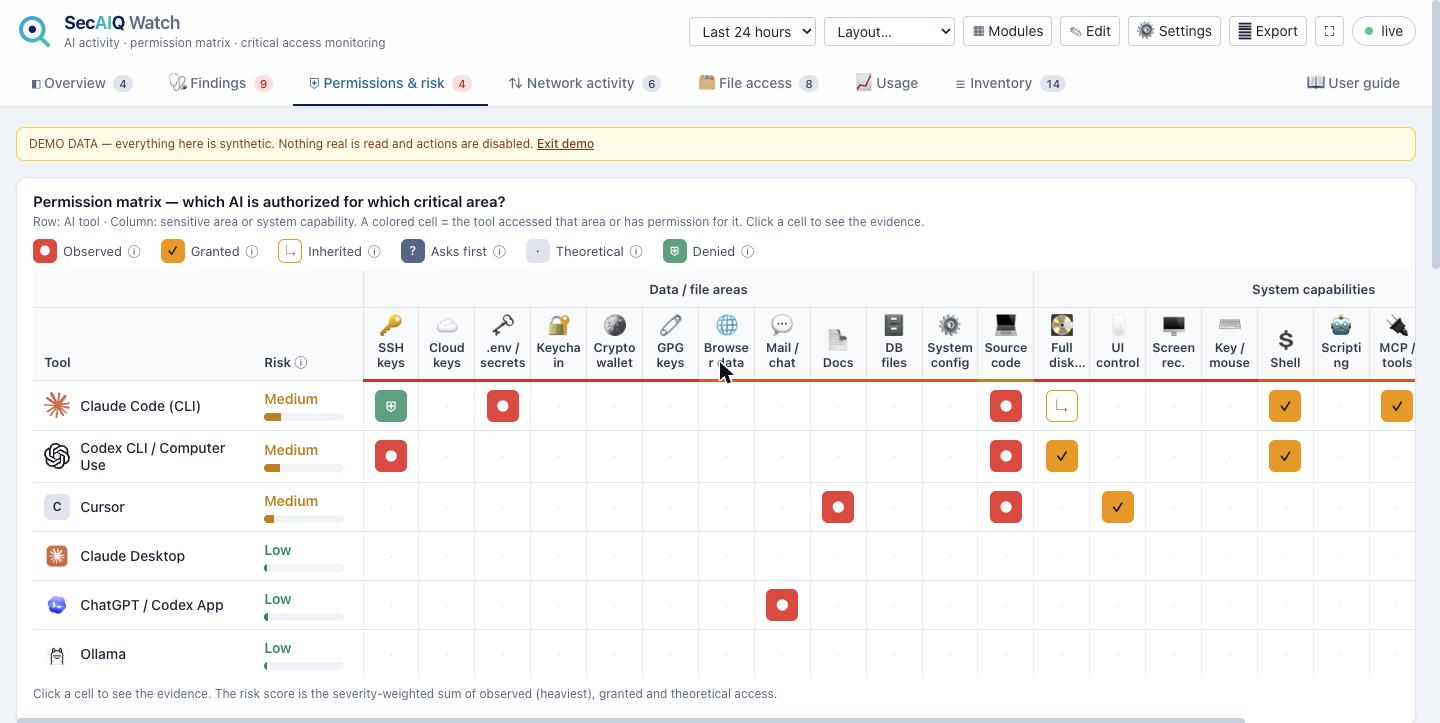
From seeing to fixing
Visibility is only useful if you can act on it. For Claude Code, SecAIQ Watch can add deny rules for sensitive areas in one click (Developer, Balanced and Strict presets), revoke individual allow rules and switch off bypass mode. Every change asks for confirmation, backs the file up first, is written to a tamper-evident log, and can be undone.
Many permissions cannot be removed by a dashboard at all, such as macOS Full Disk Access, Screen Recording, or a Flatpak app's access to your home folder. For every permission it lists, SecAIQ Watch includes a short guide to removing it yourself on macOS, Linux and Windows.
Built to be safe to run
A security tool should not add attack surface↗. The panel only answers on 127.0.0.1 with a local host name, serves none of its data files, requires a secret token for every action, keeps its database and token readable by your user only, loads no code from the internet, and escapes everything it observes, because process names and file paths can contain anything. A self-check script probes a running install for exactly these properties.
Its limits are stated plainly too. Malware↗ already running as you can still read its data, and SecAIQ Watch is a visibility tool, not endpoint↗ protection.
Reports you can hand to someone
One click produces an HTML or Markdown report and an AI bill of materials (AI-BOM) in CycloneDX 1.5 format that lists the AI tools, MCP servers and providers on the machine. CSV and JSON exports are included as well.
Try it, and tell us what breaks
This is a beta (0.10.2). It works well on macOS. Linux and Windows support has so far been tested against sample command output rather than real machines, and Windows cannot report per-connection byte counts at all; the dashboard says so where it matters. If something misbehaves, run php bin/diagnostics.php and open an issue with the output, which contains no prompts, file contents or secrets.
It needs only PHP 8.1 or newer with SQLite: no Composer, no database server, no cloud account. The commands differ a little per system, mostly because of where PHP lives.
macOS
brew install php git
git clone https://github.com/Spaksu/secaiq-watch.git
cd secaiq-watch
php bin/collect.php &
php -S 127.0.0.1:8099 -t . router.php
Linux (Debian/Ubuntu)
sudo apt install php-cli php-sqlite3 iproute2 git
git clone https://github.com/Spaksu/secaiq-watch.git
cd secaiq-watch
php bin/collect.php &
php -S 127.0.0.1:8099 -t . router.php
Windows (PowerShell). PHP is usually not on the PATH, so use the full path to php.exe (XAMPP puts it in C:\xampp\php). Open two windows, because & does not run a command in the background on Windows. Window 1:
git clone https://github.com/Spaksu/secaiq-watch.git
cd secaiq-watch
$php = "C:\xampp\php\php.exe"
& $php bin\collect.php
Window 2, in the same folder:
$php = "C:\xampp\php\php.exe"
& $php -S 127.0.0.1:8099 -t . router.php
Then open http://127.0.0.1:8099/. To look around first, try the live demo: it runs in your browser on synthetic data, and there is a built-in demo mode for exploring locally too.
SecAIQ Watch on GitHub (MIT licence)